About This Game
What Is WebGL Fluid Simulation
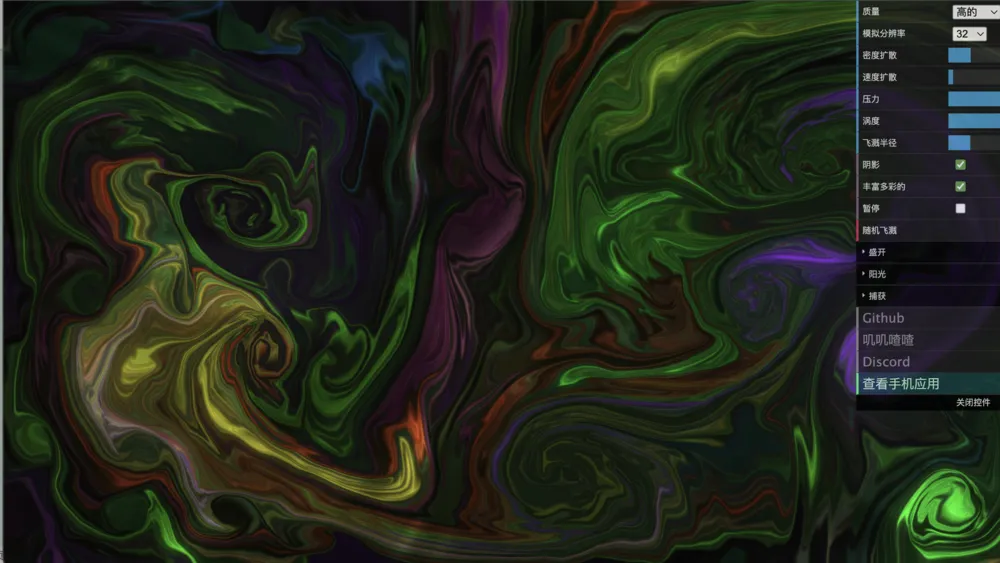
WebGL Fluid Simulation is an interactive visual sandbox that turns your browser screen into a fluid canvas. Driven by real-time computational fluid dynamics based on the incompressible Navier-Stokes equations, it simulates how liquids move, swirl, collide, and diffuse. Instead of following strict game objectives or score targets, WebGL Fluid Simulation invites you to relax, experiment, and generate hypnotizing art using mouse gestures or touch inputs.
Created to harness GPU acceleration directly within modern web browsers, WebGL Fluid Simulation combines complex physics calculations with striking visual effects like bloom glow, specular reflections, and color absorption. Whether you want a satisfying stress-relief tool, a background visualizer, or a canvas to play with fluid physics, it offers instant artistic feedback with smooth performance.
How to Play WebGL Fluid Simulation
Playing WebGL Fluid Simulation is completely intuitive—there are no complex control schemes or steep learning curves:
- Interact with the Screen: Click and drag your mouse pointer (or swipe with your fingers on touch devices) across the canvas to inject velocity and vibrant colored fluid into the simulation.
- Multi-Touch Gestures: On mobile devices or touchscreens, use multiple fingers simultaneously to create complex interlocking vortices and colorful turbulence.
- Open the Settings Panel: Click the gear icon or controls toggle (usually in the upper-right corner) to access the customization menu.
- Tweak Fluid Parameters: Adjust physics sliders like Vorticity (curling vortex strength), Pressure, Density Diffusion, and Velocity Dissipation to change how fast trails linger or spread.
- Customize Aesthetics: Toggle visual enhancements such as Bloom (neon glow), Sunrays, and Shading to change the mood from crisp liquid splashes to glowing cosmic gas.
- Capture Images: Use the built-in screenshot feature within the settings menu to save your favorite fluid formations as high-resolution wallpapers.
Key Features & Highlights
- GPU-Accelerated Fluid Dynamics: Uses custom WebGL shaders to execute real-time Navier-Stokes fluid solver algorithms at 60 FPS without requiring extra plugins.
- Rich Visual Customization: Personalize the look with bloom intensity, specular highlights, dark/bright backgrounds, and realistic light absorption.
- Deep Physics Controls: Tweak simulation resolution, dye density, viscosity, and swirl decay rates to switch between thick syrup-like flows and light ethereal smoke.
- Multi-Touch & Responsive: Fully optimized for desktop browsers, tablets, and smartphones with full multi-touch gesture support.
- Zero Installation Required: Runs lightweight in any modern web browser with instant loading and completely private local execution.
Tips & Creative Techniques
- Create Spinning Vortices: Move your cursor rapidly in tight circles to spin up intense whirlpools. Increasing the Vorticity parameter in settings makes these swirls spin longer and retain intricate detail.
- Slow-Motion Trails: Lower the Velocity Dissipation setting so your fluid trails travel across the entire screen before fading out.
- Neon Glow Aesthetics: Enable Bloom and turn up the bloom intensity to convert subtle color streams into brilliant, neon-glowing energy trails.
- Layering Colors: Make quick, sweeping strokes across the canvas in different directions to blend colors into rich, multi-layering gradients.
- Performance Optimization: If you experience lagging on low-power devices, lower the Sim Resolution or Dye Resolution in the control panel for smoother rendering.
Frequently Asked Questions (FAQ)
Is WebGL Fluid Simulation free to play?
Yes, WebGL Fluid Simulation is completely free to play directly in your web browser without ads or registration.
Can I run WebGL Fluid Simulation on mobile devices?
Yes, it works smoothly on iOS and Android browsers with full touch screen and multi-finger gesture support.
Why does WebGL Fluid Simulation lag on my computer or phone?
Fluid simulation relies heavily on your GPU. If performance drops, open the settings menu and lower the Sim Resolution or turn off heavy visual effects like Bloom and Sunrays.
How do I save screenshots of my fluid artwork?
Open the settings panel and click the Capture or screenshot button to download a crisp image of your current screen canvas.
Is WebGL Fluid Simulation a game or a visual tool?
It is an interactive physics sandbox and visual art playground. There are no win conditions or timers—you are free to explore fluid physics at your own pace.